Saturday, 17 December 2011

5 Ways to Track Windows Hidden Activities and Claim back User Privacy

It’s not just the web browser that collects information and data on the use by the user. Windows also keeps records that may reduce privacy. Many of these “logs” are actually Windows resources to enhance the experience of using the system, and therefore, occur unnoticed by the user.
There is no official tool and easy to use for displaying this information but there are ways to read this data and even prevent the system to track your private activity.


1. Coping with Shortcut in Jumplist

The lists of shortcuts (Jump Lists) made ??its opening in Windows 7 as a more convenient and practical to access documents and software executed recently. To access the list, just click the right mouse button on the button representing an open application in Taskbar.

This resource can be very useful and will help the user save time. But you can expose data that some people may prefer to keep secret. By accessing the list of shortcuts Firefox , for example, you can see what sites are accessed more frequently.
You can manually delete the contents of these lists. Paste this in Address bar %APPDATA%\Microsoft\Windows\Recent\AutomaticDestinations and %APPDATA%\Microsoft\Windows\Recent\CustomDestinations and delete all contents.
You can also disable this resource permanently. To do this, click with right mouse button on the Start menu and choose “Properties”. Then, in the guide “Start Menu”, uncheck the options under “Privacy”.
taskbar privacy option


2. List of Programs executed by user

Each time a program runs on Windows, the system records the details of this operation in a registry key that has the name ” UserAssist”. This is not a list of the last 10 or 15 you run software, but many of them. And even though they are encrypted, can be decoded easily.
One of the tools available for this is called UserAssist, which need not be installed on the computer. After downloading and running, you can display more readable data stored in the registry. Among the information available, are including the date and time of the last execution of the software.

This is very useful for those who need to analyze or control the use that children make the computer or software which the employee has used in his work schedule. But the tool is not just for the “accusation” of user habits. Can also be used as a means of counterattack, allowing the user to delete data at any time. To do this, simply select the options Commands> Clear All.
Anyone who needs a more complete solution may appeal CCleaner, and list of software to clean windows that helps users to get rid of intrusive content.


3. USB Drives and External Storage

Let’s say that during the carelessness of an employee, an attacker could take advantage of an interval of absence to connect a flash memory company’s computer and copy confidential documents, removing it before the employee returns.
Apparently, a crime without a trace, right? False! Windows keeps track and the details of USB devices that were connected to the computer. With a forensic software as OSForensics, you can discover if a device has been used in the machine.

And now we have a story that can leave you more paranoid: it is virtually impossible to eliminate the traces left by connecting a USB device. In theory, reference is made to a USB device, for example, are all in the Windows registry. But they appear in so many places that ends up being impossible to eliminate all safely just delete it.


4. Mysteries of Prefetch Folder

When you open an application, Windows maps the areas of the hard drive has been accessed during the implementation process and some files associated with the software. Therefore, it is as if Windows let the program pre-loaded for future use and, the next time someone runs, the charging time will be much faster.
To review this list and spy, just run Windows Explorer and access the \ Windows \ Prefetch. Note that the user must have administrator privileges to view and modify the contents of this directory.


5. Time to amend Windows Registry

Ideally, you do should not mess with this functionality. The change could affect the performance of your system, leaving it more slowly. But if you want to risk it, you can simply delete the contents of the folder “Prefetch”.
As much as the user tries to delete or block some of the items described here, there is a property in the Windows registry keys that can not be modified: the time of the last modification made ??to the key. And since everything the user does in Windows changed, somehow, the registry, it becomes easy to use a tool like Aezay Registry Commander to discover what applications were used in certain periods.

Therefore, the more it strives to increase your privacy, there are always ways to find out how the computer has been used. But in general, it costs nothing to study a little about how these details in Windows. In the worst case, you get more knowledge about the operating system of Microsoft, which never goes in vain.

How to know which sites are being accessed secretly by Computer

Almost all the machines out of the stores in the past two years, whether laptop or desktop, are connected to the worldwide web, which makes them target of malicious activities.
Another problem is that the common good protection applications fail to detect 100% of the invaders knocking on the door of the user.
A common type of spyware is one which intends to steal data, but to use the computer as a zombie, using your internet connection to hack sites and services available on the network. There is a way to monitor your internet connection and see all and any website or IP address that is accessed through your router.

How to find hidden Process activities?

The first step to discover what services are being accessed on your computer is to start the Windows command prompt with administrator privileges. For this, open the Start menu and type “cmd” in the search space. Then, click the right mouse button on the Match and choose the item “Run as administrator”.
Use the command “netstat” to record all activities that access the Internet in some way. For this, just type in the instruction as shown below:
netstat-abf 5 > PATH/activity.txt
“PATH” must be the directory where the file “activity.txt” will be saved. It can be any folder on your computer.

The letter “-a” command means that all connections and gates shall be heard and stored in the file, the “-b” shows which applications are creating ways to access the internet, the “-f” will record the full DNS each connection, to facilitate understanding of the data. If you want only the IP addresses are recorded, put the “-n” in place of “-f” make it “-abn”. The value “5″ indicates the length of time, in seconds, from one reading to another.
Nothing will be displayed on the screen while the command is being executed. After a few minutes, press Ctrl + C to finish the reading of the connections and stop recording data in the file. Now we just have to open the text file created and begin to analyze what services were accessed from your computer.

How to interpret results

When you open the file activity.txt, you will notice that the content is divided into four main columns:
Protocol: states the type of protocol used to access.
Local and Foreign Address are IP addresses.
State column shows the activity that was being made at the time of reading.

It is in the third column where all efforts will be concentrated, as this indicates the external IP addresses and URLs accessed by your machine. An easy way to find suspicious activity is to look at the name of the processes presented in brackets throughout the document.
Noticed something different, check the Foreign address you use. If you still can not identify what it is, a good start is to look for the name of the activity on Google. If common in computers, surely there somewhere that explains what it is.
Another way to discover the service is accessed using a service that tracks IP addresses. Two good choices are IP Address Tracer and Global Whois Search. In both cases, you only need to copy the IP in the search space and wait until the search is completed and the data begin to appear on the screen.

Other tools

There are several applications that help monitor the doors and open connections on a computer. CurrPorts is one of the most used by users with a little more experience, it is relatively easy to use and interpretation of results displayed on the screen gives more natural.
Wireshark is also more suited to who owns a home computer network, as this also examines the exchange of messages between machines connected by the hub (or switch). Thus, if a computer is infected and the invasion propagates through the network, manages to detect without major problems.

What do I do next?

If the test result says that the process is, in fact, an invader, it is necessary to take some steps to be removed from the computer and not use more than your connection. The simplest way to do this is to use security applications such as anti-spyware, that analyze the machine for possible internet virus.
If the tools have no effect on the potential invader, one option is to search the World Wide Web specific to certain virus injections. Google always helps. It is very common for security companies to launch free solutions to fix only certain threats. If still you are finding it difficult and unsure then get a tool called Spyware Doctor Full version for just 18.99$ to be on safe side and let it handle all dirty work.
Now that you know how to use “netstat” and saw how easy it is to interpret the data and use the information provided, it begins to scan your computer to find out if there are any hidden process running and if your connection is hurting. Then again do not forget to leave us a comment telling your experience.
There are several programs that help to protect your machine from these spywares, but not always sufficient to prevent them from invading your computer.

Tuesday, 6 December 2011

Download and install Android OS on Windows

Download and install Android OS on Windows Download and install Android OS on Windows
Android OS on Windows

Android OS is an open source mobile operating system owned by Google  and developed by the Android developer community. Android is based on Linux, and it is widely used in mobile phones, and also waiting for its entry into tablets and netbook computer segment. Though it is a mobile OS, we can virtually run Android on Linux, Intel Mac and even in Windows. Live Android is a special compilation of Android OS in a CD ISO image form, that we can use to boot Android from a USB drive or CD. We can also use a desktop vitalization application like SUN VirtualBox and install (virtually) or operate Android OS in Windows and other OS platforms. Though we cannot exactly reproduce and use Android just like as in mobile phones, give it a try if you are planning to buy an Android device or curious to know about its user interface, menu options, etc. Here we will point you to the Live Android download, and help you to  install Android OS in Windows, virtually using SUN VirtualBox application.


Download Android OS Live image version:

Download Android Live CD  here.

Credits:  Live Android and Google Code.

After download, unzip LiveAndroid.zip and join the two .iso files with HJsplit for Windows.

Now download and install SUN (Now Oracle) VirtualBox for Windows from here.

After installation, Open VirtualBox and click on create new virtual machine .

Create Android Virtual Machine  Download and install Android OS on Windows
Create Android Virtual Machine

Enter the name as Android and Operating system choice as Windows XP, Windows Vista or Windows 7. In all upcoming steps, click next after competing with all the required instructions given below.
Set memory. (keep it as default)
From radio buttons, create new hard disk.
Select Dynamically expanding storage .
Set Android virtual disk location and a suitable size (say 20GB)
Now click Finish to create a new Android VirtualBox.

Android Virtual Machine in Windows XP Download and install Android OS on Windows
Android Virtual Machine in Windows XP

Now from VirtualBox interface select Android and click start .
First run wizard opens.
In next step, select media source as image and browse to the location of the joined Live Android .ISO image .
Let the wizard complete. It will open the the Android OS  home (given below) after execution. When we click mouse anywhere, it will pop-up a box- click capture and continue.

Android Home                                                               Android Menu

697 Google%2BAndroid%2Bin%2BWindows Download and install Android OS on Windows699 Android%2Bmenu Download and install Android OS on Windows

701 techknowl%2Bandroid Download and install Android OS on Windows

Techknowl in Android web browser- virtually installed on Windows (click to enlarge ).

You can also test Google Chrome OS preview ( ISO image) in SUN VirtualBox using a similar method given here.

Thursday, 1 December 2011

10 Little Known Tricks about VLC Media Player to Squeeze Most out of its Versatility

This article is a list of some useful tricks which could be performed on VLC Media Player. Transform, convert, broadcast and capture are the new verbs apart from “play” with VLC Media Player.
Some of these are useful while there are some which are meant just for fun.

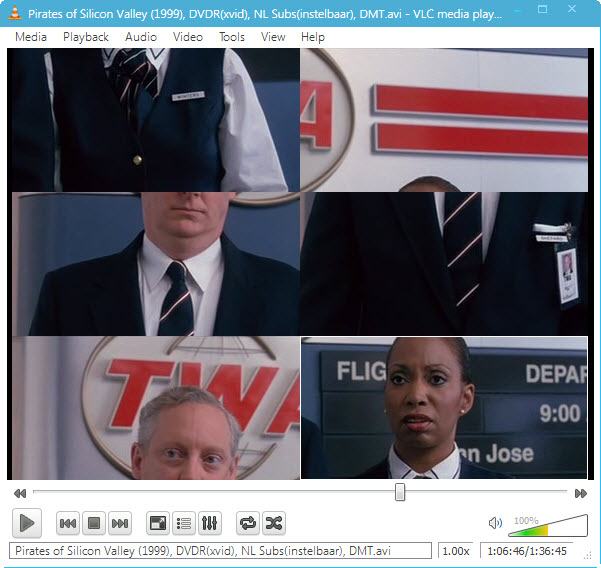
Jigsaw Puzzle Game on VLC Video

The playback of video could be broken down into number of parts / pieces similar to what we have in Puzzle Games.

Tools > Effects and Filters > Video Effects > Geometry > Enable Puzzle Game and select number of Columns and rows on screen.

Make Artistic Sketch

Gradient Effect on VLC Media player could show Video as if its a sketch drawn by an Artist on Canvas.

Tools > Effects and Filters > Video Effects > Image Modification > check on Gradient

Add Logo / Watermark on Video

Though we have already covered a article on how to add Image Logo / Watermark on Video but if you want to have a temporary logo on the video only during playback in presentation, then VLC can do that too.

Tools > Effects and Filters > Video Effects > Logo > Check on Logo and give the file location of Image File either PNG or JPG.

Inbuilt Video Converter

When I say it’s more than a payer then you can expect common Multimedia features in VLC. It can convert any video to most popular Video formats without need of any extra software.

Media > Convert/ Save >Add File > Convert > Select Output format and directory to start processing video

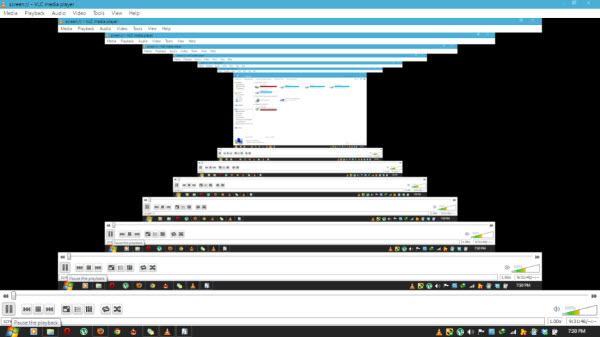
Inception / Desktop inside Desktop Effect

Not so useful, Meant just for fun to see your Desktop screen go upto infinity.

Media > Open Network Stream > Type screen:// and Hit play button

Video Streaming

Not just Local Files (Saved on Compute) but also online media could be played on VLC directly.
You just need to have Video URL which has to be put in Media > Open Network Stream >Enter URL and Play. This could be even Youtube URL to play Youtube Videos on VLC or even Dailymotion and other popular online Video libraries.

Play RAR files / Splitted video Parts

Movie when downloaded from internet comes in several parts with extension .001 .002 which are splitted using WinRAR. You no more need another software to join those files for playback. Just drag the .001 file into VLC Player and you are ready to watch the movie.

Record from WebCam


Media > Open Capture Device and Play after selecting the WebCam. In my case, it was integrated Webcam to my Laptop.

Download Online Media / Streaming Videos

While online media is playing then you can obtain a direct link to download it using VLC. Go to Tools > Codec Information and at the bottom, you will find address of file in Location box.
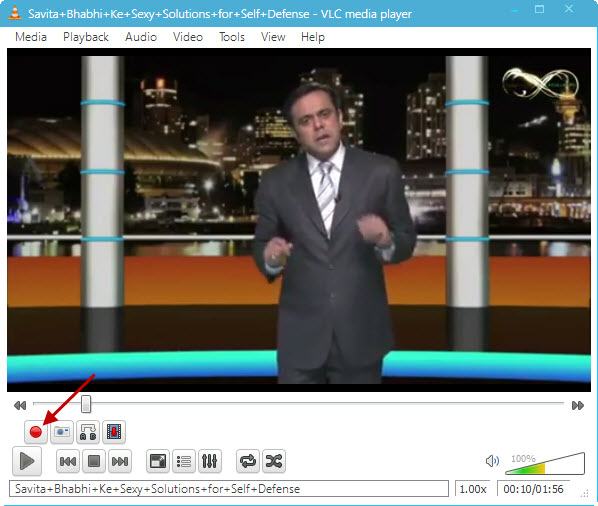
Alternatively, we can do it by just using Record Option to capture live streaming of video.

Enable Advanced Control from View menu and you will see RECORD button (Red circle)

Video Screenshots

You may want to capture some video still and export into JPG / PNG Image file then VLC has Snapshot feature. Right on Video Playback screen and click on Snapshot.

Image file will be saved to the directory you have mentioned in Preferences of VLC.
Were you aware that these all functions could be done using simple Media player? Imagine how many software could be trashed off from your computer which were meant to perform those small operations mentioned above.

Thursday, 24 November 2011

Top 6 Free Unknown Android Apps You Haven’t Heard Of :

The following top 6 free unknown android apps are some of the newer free apps hitting the market. These great apps are so new, there is a very good chance you haven’t heard of them yet. As they are also great apps, there is also a very good chance that you should try them now.
1) Sparkle Share
This is one of the most exciting new Android apps. Cloud computing is getting bigger and bigger, and this app lets you get in on the cloud by letting you set up your own cloud. Sponsored by Sparkleshare.org, an open source site, you will be able to upload and download files in your personal cloud via your Android device.
2) Jeannie
Those silly iPhone people have Siri, but now, you can have Jeannie on your Android. She is your personal assistant, letting you use speech commands to control your phone with this free Android app. You can also use Jeannie to use your voice to send texts and emails, set alarms and dial your friends and family from your contact list.
3) QR-GPS Plugin.
QR codes are becoming big deals, and they are showing up everywhere, including on invitations and written directions. One scan of these QR codes, and people know exactly where to go. This app is on the forefront of this new technology, as it is a free Android app that lets you create your own QR codes. It lets you make a QR code for your current location using your Android’s GPS services. The only downside is that you can’t make a QR code for a destination other than where you currently are.
4) Easy MP3 Downloader
Using public search engines and scouring the public domain, this app assists you in downloading music to your Android. This new app has been getting mostly great reviews from the folks who have been using it to search, edit, download and share music via this free Android app.
5) PicsArt – Photo Studio
This powerful free Android app is an all-in-one photo editing app. This app combines the top features of many photo apps into one, making it one of the best, most complete free Android photo editors. It comes with a lot of filters and effects, frames, clipart and editing tools. You can also share your photos directly from PicsArt on several social media networks including Facebook, Flickr, Tumblr and more.
6) Defender
This free Android game has been getting great reviews, and has been praised for being fun yet difficult. This is a freemium app, meaning that there are available in app purchases, but many players have had no problem playing and advancing without shelling out additional money. This medieval themed game has you defending your castle against wave after wave of monster intruders. It sounds fun, and it is definitely worth a try.

HOT DOWNLOADS.......

Featured Downloads


Trend Micro Internet Security
Trend Micro Internet Security makes it easy to protect your home network, personal identity, and online activity.
Trend Micro Internet Security Pro
Powerful protection home and away.
The Ultimate Solution for Creative Enthusiasts
Nero 10 Platinum HD offers video editing, burning, backup, plus more.

Hot Windows Software Titles

Webroot Spy Sweeper 5.5
Remove and block all types of spyware on your computer.
Trend Micro Internet Security 2008 16.10.1063
Detect and remove spyware, block spam, and guard against phishing and pharming attacks.
LogMeIn Free 4.0.68
Get instant secure access to programs and e-mail from anywhere.
McAfee SiteAdvisor for Internet Explorer 2.6.0.6253
Add safety ratings to sites and search results to protect against adware, spam, and online scams.
Microsoft Office Accounting Express 2008
Manage your accounting tasks and forecast business financials, all with the familiar look and feel of Microsoft Office.

Most Popular Windows Software Downloads

AVG Anti-Virus Free Edition 2012
Protect your computer from viruses and malicious programs.
YouTube Downloader
Download & convert videos from YouTube and dozens of other popular sites.
Avast Free Antivirus
Protect your PC against the latest viruses and spyware.
Malwarebytes Anti-Malware
Detect and quickly remove malicious threats to your computer.
TeamViewer
Share your desktop with another person via the web.

Top Rated Windows Software Downloads

Apple QuickTime
Play MPEG-4 movies with AAC sound with latest version of Apple's premier media player.
JetAudio Basic
Play video and audio files, convert to other file formats, burn CDs, download Youtube video.
Easy CD-DA Extractor
Complete audio suite that features CD ripping, audio converting, and CD/DVD burning.
Alcohol 120%
Create virtual CD/DVD-ROMs and burn backup copies of your favorite discs.
FreeRIP
Convert CDs to MP3, WMA, WAV, OGG, FLAC formats, convert audio files, tag MP3 files.

New Windows Software Releases

Moo0 AudioPlayer
Play audio files on your PC.
Winyl
Organize and enjoy all your music.
GreenForce-Player
Play and enjoy music files on your system.
TuneIn Radio Pro
Stream the largest selection of radio and dind hundreds of music formats and more.
TuneIn Radio
Browse and listen to radio -- live, local and global.

The Best Computer Tips and Tricks: Mac OS X 10.5 Leopard

View Files in the Trash


With Leopard's Quick Look, you no longer have to drag items from the trash in order to view them. While in the trash folder, hit Command+Y while on any file to see a preview of its contents.

Change a Folder Icon


Want to change an icon to something more to your liking? First, find the icon you want. Then click on it, and hit Command+C to copy it. Click on the icon you want to change, and use Command+I to launch the folder info. Click on the old icon in the folder and use Command+V to paste the new icon.

Open New Tabs with the Address Bar in Safari


If you want to open an address in a new tab without deselecting your current tab, type the address into the address bar, then press Command+Enter. This allows you to work easily in multiple tabs.

Preview a Font


If you want to see what a font looks like, you don't have to open Font Book or a font manager. In Cover Flow, a font icon will appear as a small, two-letter sample of the font you have selected. To see a larger sample of the font, select a font file and use Quick Look (Command+Y) to see it, or just hit the spacebar.

Change Your Stack View


You can choose to view your stack in either a fan or a grid view. To change it, click on a stack until a menu appears. Then, select "View As" and choose either Fan or Grid. The stack will then open with your preferred style.

How to create a shortcut for locking the Computer Screen in Windows 7?

There are many ways in which you can lock the computer screen.
 The most popular as well as the fastest way to lock it is to use a keyboard shortcut.
The keyboard shortcut used to lock the computer screen is Win+L.
A few of us choose to utilize the mouse to lock it. And of course many people like to use both the options.
There is another method in which we can lock the computer screen. It is to create a shortcut for locking the computer screen in Windows 7. You can create a shortcut for locking the computer screen in Windows 7, XP and Vista too. Follow these steps in order to create a shortcut for locking the computer screen in Windows 7 as well as other editions:
Right-click on the desktop where you would like to create the shortcut.
Point to New.
Click on Shortcut from the menu.

Type in this text in the shortcut textbox. (This text will work for Windows XP as well even though the screen will be different)
rundll32.exe user32.dll, LockWorkStation

Click on the Next button.
Type in a name for your shortcut.
Click on the Finish button.
You have successfully created a shortcut to lock your workstation. Just click on the shortcut whenever you want to lock the computer screen.

Sunday, 20 November 2011

Top 20 Tips To Keep Your System Faster

Follow these tips and you will definitely have a much faster and more reliable PC!


 1. Wallpapers: They slow your whole system down, so if you're willing to compromise, have a basic plain one instead!


2. Drivers: Update your hardware drivers as frequently as possible.  New drivers tend to increase system speed especially in the case of graphics cards, their drivers are updated by the manufacturer very frequently!


3. Minimizing: If you want to use several programs at the same time then minimize those you are not using.  This helps reduce the overload on RAM.


4. Boot Faster: The 'starting Windows 98/XP' message on startup can delay your booting for a couple of seconds.  To get rid of this message go to c:\ and find the file Msdos.sys.  Remove the Read-Only option.  Next, open it in Notepad or any other text editor.  Finally, go to the text 'Options' within the file and make the following changes: Add BootDelay=0.  To make your booting even faster, set add Logo=0 to remove the Windows logo at startup.


5. Restart only Windows: When restarting your PC, hold down Shift to only restart Windows rather than the whole system which will only take a fraction of the time.


6. Turn Off Animations:  Go to Display Settings from the Control Panel and switch to the Effects Tab. Now turn off Show Windows Content While Dragging and Smooth Edges on Screen Fonts.  This tip is also helpful with Windows XP because of the various fade/scroll effects.

7. Faster Start-Menu Access: Go to the Start menu and select Run.  Now type Regedit and hit Enter.  The Registry Editor will appear on the screen.  Now, open the folder HKEY_CURRENT_USER\Control Panel\Desktop.  You should see a MenuShowDelay value.  If you don't then do the following: right click on a blank space in the right pane and select New\String.  Change the name in the new value to MenuShowDelay.  Now that we have the MenuShowDelay value, double click on it and enter 0 in the value data field.  This sets the start menu delay to 0 milliseconds.

8. Resolutions: If you are willing to do anything for faster performance from your PC, then try lowering your display resolution.  The lower it is, the faster your PC.

9. Turn off Active Desktop:  Go to your Display Properties and switch to the Web tab.  Uncheck View My Active Desktop As a Web Page.  Since the Active Desktop option under Windows 98 uses a lot of system resources, this option can have a dramatic effect on the speed of the whole system.

10. Defragment Often:  Windows 98's Defrag tool uses Application Acceleration from Intel which means that when you defragment your drive, data is physically arranged on the drive so that applications will load faster.

11. Take your PC to Bed:  Using the Advanced Power Management feature under Windows 98 gives you the option to use the sleep command.  That way, you can send your PC to sleep instead of shutting it down and then restarting it.  It's as simple as pressing a button and then pressing the same button to wake it up.  You can tell Windows after how many minutes/hours of inactivity to automatically sleep the machine in the Advanced Power Management section of the Control Panel.

12. Faster Internet Access: If you use the internet for reference and the sites you visit are rarely  updated then try the following.  In IE (the same can be done in Netscape) go to Tools, Internet Options.  Next, click on Settings... in the Temporary Internet Files  section.  Finally, select Never for the first option and double the amount of storage space to use, click OK!

13. Benchmarking: Benchmarking can be very useful when run frequently.  It can tell you how your PC's components are performing and then compare them to other machines like yours.  For example, when you overclock your PC, you want to know how much more speed you have and whether it is stable.  All this and more can be discovered using benchmarking.  An excellent piece of software for doing this job is SiSoft Sandra which can be found in the Downloads File Archive!

14. Refresh the Taskbar without restarting: If you in some way change the taskbar, either in Regedit or elsewhere, you can refresh the task bar without restarting.  Hold down Ctrl Alt Del, and double click on Explorer.  Say Yes to close Explorer, but no to closing Windows.  This will refresh the Taskbar and system tray.

15. Quick CD Eject: Instead of pushing the button on your drive, right-click your CD drive letter in My Computer and click on Eject.  This will also remove any icons that have become associated with the CD drive.


6. Start Up Programs:  Windows can be slowed down when programs run on start up.  To eliminate this, check your Start up folder.  You can access it from the start menu: Start, Programs, Start Up.  Another way to eliminate programs from loading even before Windows actually starts is by doing the following: Click on Start, then Run.  Type msconfig.  It will take quite a long time for this program to load, but when you finally see it on your screen, explore the different tabs.  They all have to do with how quickly your PC boots, so select what you want, and uncheck what you don't want!

17. Fonts: When Windows starts, it loads every single font in the Fonts folder.  Therefore, the more fonts you have, the slower the booting process.  To get rid of unwanted fonts, simply go to the Fonts folder under c:\windows and remove whatever you don't want.  Fonts that have a red letter 'A' as their icon are system fonts, so don't delete them.

18. Stretching Wallpapers:  Don't "stretch" your wallpaper in Windows 98 since it actually slows Windows down when you drag icons around on the desktop.

19. RAM Matters: If you have less than 32MB then you should seriously think of upgrading it to at least 64MB.  Windows runs much more smoothly with 64MB or higher and tends to use less hard disk space for virtual memory.

20. Partitioning: A very nice little thing you can do to boost system performance.  By partitioning your hard drive, splitting one physical drive into several logical ones, you can gain several advantages.  1. If you get a virus or you accidentally format a drive, not all will be lost.  2. By placing the swap file (Win386.swp) on a separate drive, The swap file will be less fragmented and thus, faster. 3. Place Windows on a separate drive and whenever you need to reinstall it, you rest assured that your data is safe on a separate drive.  Partitioning can be done using a few programs such as FDisk which comes with DOS.  However, FDisk formats everything on the hard disk before partitioning. Alternatively, you can use Partition Magic from Power Quest to partition your hard disk without losing your data.

Thursday, 17 November 2011

Access Airtel Gprs on your computer for FREE

Hi friends,
here i gave u a trick 4 free gprs on ur pc. it is only 4 airtel customers…
the following are the requirements:
1. A gprs supported mobile
2.mobile office activated sim
3.a software on ur pc that is your-freedom.you can download it from the following link:

Download here

4.you need the instruction for settings.it will get from hre:
Download userguide
5.you need a your-freedom account.for that click here:

REGISTER HERE

6.that is all u required.
procedure:
1.connect ur mobile with pc using data cable\others
2.connect to the network ,using airtel mobile office
3.then install the software your-freedom on ur pc.and open it
4.open the instruction pdf file and set up all settings in the software as described in te pdf file.(dont forget to type ur password and user name u registered)
5.thats all. dont forget to change settings in mozilla or explorer
6.u have done enjoy free unlimited gprs
Ffor more information,Commment Below ..!!