Saturday, 17 December 2011

5 Ways to Track Windows Hidden Activities and Claim back User Privacy

It’s not just the web browser that collects information and data on the use by the user. Windows also keeps records that may reduce privacy. Many of these “logs” are actually Windows resources to enhance the experience of using the system, and therefore, occur unnoticed by the user.
There is no official tool and easy to use for displaying this information but there are ways to read this data and even prevent the system to track your private activity.


1. Coping with Shortcut in Jumplist

The lists of shortcuts (Jump Lists) made ??its opening in Windows 7 as a more convenient and practical to access documents and software executed recently. To access the list, just click the right mouse button on the button representing an open application in Taskbar.

This resource can be very useful and will help the user save time. But you can expose data that some people may prefer to keep secret. By accessing the list of shortcuts Firefox , for example, you can see what sites are accessed more frequently.
You can manually delete the contents of these lists. Paste this in Address bar %APPDATA%\Microsoft\Windows\Recent\AutomaticDestinations and %APPDATA%\Microsoft\Windows\Recent\CustomDestinations and delete all contents.
You can also disable this resource permanently. To do this, click with right mouse button on the Start menu and choose “Properties”. Then, in the guide “Start Menu”, uncheck the options under “Privacy”.
taskbar privacy option


2. List of Programs executed by user

Each time a program runs on Windows, the system records the details of this operation in a registry key that has the name ” UserAssist”. This is not a list of the last 10 or 15 you run software, but many of them. And even though they are encrypted, can be decoded easily.
One of the tools available for this is called UserAssist, which need not be installed on the computer. After downloading and running, you can display more readable data stored in the registry. Among the information available, are including the date and time of the last execution of the software.

This is very useful for those who need to analyze or control the use that children make the computer or software which the employee has used in his work schedule. But the tool is not just for the “accusation” of user habits. Can also be used as a means of counterattack, allowing the user to delete data at any time. To do this, simply select the options Commands> Clear All.
Anyone who needs a more complete solution may appeal CCleaner, and list of software to clean windows that helps users to get rid of intrusive content.


3. USB Drives and External Storage

Let’s say that during the carelessness of an employee, an attacker could take advantage of an interval of absence to connect a flash memory company’s computer and copy confidential documents, removing it before the employee returns.
Apparently, a crime without a trace, right? False! Windows keeps track and the details of USB devices that were connected to the computer. With a forensic software as OSForensics, you can discover if a device has been used in the machine.

And now we have a story that can leave you more paranoid: it is virtually impossible to eliminate the traces left by connecting a USB device. In theory, reference is made to a USB device, for example, are all in the Windows registry. But they appear in so many places that ends up being impossible to eliminate all safely just delete it.


4. Mysteries of Prefetch Folder

When you open an application, Windows maps the areas of the hard drive has been accessed during the implementation process and some files associated with the software. Therefore, it is as if Windows let the program pre-loaded for future use and, the next time someone runs, the charging time will be much faster.
To review this list and spy, just run Windows Explorer and access the \ Windows \ Prefetch. Note that the user must have administrator privileges to view and modify the contents of this directory.


5. Time to amend Windows Registry

Ideally, you do should not mess with this functionality. The change could affect the performance of your system, leaving it more slowly. But if you want to risk it, you can simply delete the contents of the folder “Prefetch”.
As much as the user tries to delete or block some of the items described here, there is a property in the Windows registry keys that can not be modified: the time of the last modification made ??to the key. And since everything the user does in Windows changed, somehow, the registry, it becomes easy to use a tool like Aezay Registry Commander to discover what applications were used in certain periods.

Therefore, the more it strives to increase your privacy, there are always ways to find out how the computer has been used. But in general, it costs nothing to study a little about how these details in Windows. In the worst case, you get more knowledge about the operating system of Microsoft, which never goes in vain.

How to know which sites are being accessed secretly by Computer

Almost all the machines out of the stores in the past two years, whether laptop or desktop, are connected to the worldwide web, which makes them target of malicious activities.
Another problem is that the common good protection applications fail to detect 100% of the invaders knocking on the door of the user.
A common type of spyware is one which intends to steal data, but to use the computer as a zombie, using your internet connection to hack sites and services available on the network. There is a way to monitor your internet connection and see all and any website or IP address that is accessed through your router.

How to find hidden Process activities?

The first step to discover what services are being accessed on your computer is to start the Windows command prompt with administrator privileges. For this, open the Start menu and type “cmd” in the search space. Then, click the right mouse button on the Match and choose the item “Run as administrator”.
Use the command “netstat” to record all activities that access the Internet in some way. For this, just type in the instruction as shown below:
netstat-abf 5 > PATH/activity.txt
“PATH” must be the directory where the file “activity.txt” will be saved. It can be any folder on your computer.

The letter “-a” command means that all connections and gates shall be heard and stored in the file, the “-b” shows which applications are creating ways to access the internet, the “-f” will record the full DNS each connection, to facilitate understanding of the data. If you want only the IP addresses are recorded, put the “-n” in place of “-f” make it “-abn”. The value “5″ indicates the length of time, in seconds, from one reading to another.
Nothing will be displayed on the screen while the command is being executed. After a few minutes, press Ctrl + C to finish the reading of the connections and stop recording data in the file. Now we just have to open the text file created and begin to analyze what services were accessed from your computer.

How to interpret results

When you open the file activity.txt, you will notice that the content is divided into four main columns:
Protocol: states the type of protocol used to access.
Local and Foreign Address are IP addresses.
State column shows the activity that was being made at the time of reading.

It is in the third column where all efforts will be concentrated, as this indicates the external IP addresses and URLs accessed by your machine. An easy way to find suspicious activity is to look at the name of the processes presented in brackets throughout the document.
Noticed something different, check the Foreign address you use. If you still can not identify what it is, a good start is to look for the name of the activity on Google. If common in computers, surely there somewhere that explains what it is.
Another way to discover the service is accessed using a service that tracks IP addresses. Two good choices are IP Address Tracer and Global Whois Search. In both cases, you only need to copy the IP in the search space and wait until the search is completed and the data begin to appear on the screen.

Other tools

There are several applications that help monitor the doors and open connections on a computer. CurrPorts is one of the most used by users with a little more experience, it is relatively easy to use and interpretation of results displayed on the screen gives more natural.
Wireshark is also more suited to who owns a home computer network, as this also examines the exchange of messages between machines connected by the hub (or switch). Thus, if a computer is infected and the invasion propagates through the network, manages to detect without major problems.

What do I do next?

If the test result says that the process is, in fact, an invader, it is necessary to take some steps to be removed from the computer and not use more than your connection. The simplest way to do this is to use security applications such as anti-spyware, that analyze the machine for possible internet virus.
If the tools have no effect on the potential invader, one option is to search the World Wide Web specific to certain virus injections. Google always helps. It is very common for security companies to launch free solutions to fix only certain threats. If still you are finding it difficult and unsure then get a tool called Spyware Doctor Full version for just 18.99$ to be on safe side and let it handle all dirty work.
Now that you know how to use “netstat” and saw how easy it is to interpret the data and use the information provided, it begins to scan your computer to find out if there are any hidden process running and if your connection is hurting. Then again do not forget to leave us a comment telling your experience.
There are several programs that help to protect your machine from these spywares, but not always sufficient to prevent them from invading your computer.

Tuesday, 6 December 2011

Download and install Android OS on Windows

Download and install Android OS on Windows Download and install Android OS on Windows
Android OS on Windows

Android OS is an open source mobile operating system owned by Google  and developed by the Android developer community. Android is based on Linux, and it is widely used in mobile phones, and also waiting for its entry into tablets and netbook computer segment. Though it is a mobile OS, we can virtually run Android on Linux, Intel Mac and even in Windows. Live Android is a special compilation of Android OS in a CD ISO image form, that we can use to boot Android from a USB drive or CD. We can also use a desktop vitalization application like SUN VirtualBox and install (virtually) or operate Android OS in Windows and other OS platforms. Though we cannot exactly reproduce and use Android just like as in mobile phones, give it a try if you are planning to buy an Android device or curious to know about its user interface, menu options, etc. Here we will point you to the Live Android download, and help you to  install Android OS in Windows, virtually using SUN VirtualBox application.


Download Android OS Live image version:

Download Android Live CD  here.

Credits:  Live Android and Google Code.

After download, unzip LiveAndroid.zip and join the two .iso files with HJsplit for Windows.

Now download and install SUN (Now Oracle) VirtualBox for Windows from here.

After installation, Open VirtualBox and click on create new virtual machine .

Create Android Virtual Machine  Download and install Android OS on Windows
Create Android Virtual Machine

Enter the name as Android and Operating system choice as Windows XP, Windows Vista or Windows 7. In all upcoming steps, click next after competing with all the required instructions given below.
Set memory. (keep it as default)
From radio buttons, create new hard disk.
Select Dynamically expanding storage .
Set Android virtual disk location and a suitable size (say 20GB)
Now click Finish to create a new Android VirtualBox.

Android Virtual Machine in Windows XP Download and install Android OS on Windows
Android Virtual Machine in Windows XP

Now from VirtualBox interface select Android and click start .
First run wizard opens.
In next step, select media source as image and browse to the location of the joined Live Android .ISO image .
Let the wizard complete. It will open the the Android OS  home (given below) after execution. When we click mouse anywhere, it will pop-up a box- click capture and continue.

Android Home                                                               Android Menu

697 Google%2BAndroid%2Bin%2BWindows Download and install Android OS on Windows699 Android%2Bmenu Download and install Android OS on Windows

701 techknowl%2Bandroid Download and install Android OS on Windows

Techknowl in Android web browser- virtually installed on Windows (click to enlarge ).

You can also test Google Chrome OS preview ( ISO image) in SUN VirtualBox using a similar method given here.

Thursday, 1 December 2011

10 Little Known Tricks about VLC Media Player to Squeeze Most out of its Versatility

This article is a list of some useful tricks which could be performed on VLC Media Player. Transform, convert, broadcast and capture are the new verbs apart from “play” with VLC Media Player.
Some of these are useful while there are some which are meant just for fun.

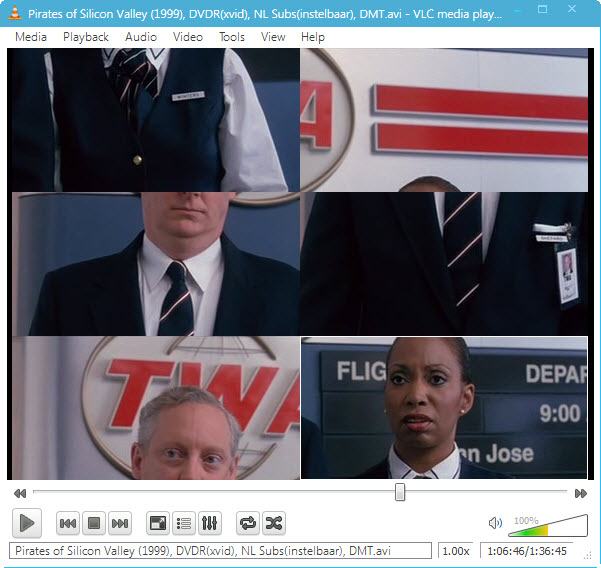
Jigsaw Puzzle Game on VLC Video

The playback of video could be broken down into number of parts / pieces similar to what we have in Puzzle Games.

Tools > Effects and Filters > Video Effects > Geometry > Enable Puzzle Game and select number of Columns and rows on screen.

Make Artistic Sketch

Gradient Effect on VLC Media player could show Video as if its a sketch drawn by an Artist on Canvas.

Tools > Effects and Filters > Video Effects > Image Modification > check on Gradient

Add Logo / Watermark on Video

Though we have already covered a article on how to add Image Logo / Watermark on Video but if you want to have a temporary logo on the video only during playback in presentation, then VLC can do that too.

Tools > Effects and Filters > Video Effects > Logo > Check on Logo and give the file location of Image File either PNG or JPG.

Inbuilt Video Converter

When I say it’s more than a payer then you can expect common Multimedia features in VLC. It can convert any video to most popular Video formats without need of any extra software.

Media > Convert/ Save >Add File > Convert > Select Output format and directory to start processing video

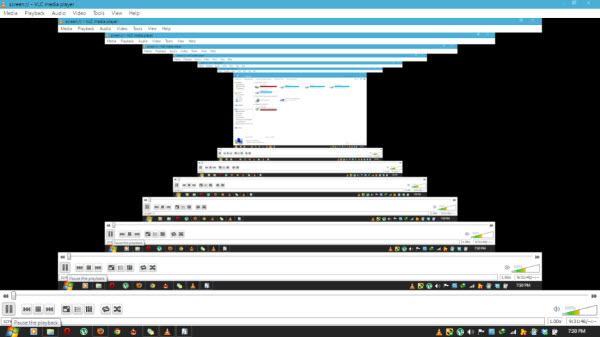
Inception / Desktop inside Desktop Effect

Not so useful, Meant just for fun to see your Desktop screen go upto infinity.

Media > Open Network Stream > Type screen:// and Hit play button

Video Streaming

Not just Local Files (Saved on Compute) but also online media could be played on VLC directly.
You just need to have Video URL which has to be put in Media > Open Network Stream >Enter URL and Play. This could be even Youtube URL to play Youtube Videos on VLC or even Dailymotion and other popular online Video libraries.

Play RAR files / Splitted video Parts

Movie when downloaded from internet comes in several parts with extension .001 .002 which are splitted using WinRAR. You no more need another software to join those files for playback. Just drag the .001 file into VLC Player and you are ready to watch the movie.

Record from WebCam


Media > Open Capture Device and Play after selecting the WebCam. In my case, it was integrated Webcam to my Laptop.

Download Online Media / Streaming Videos

While online media is playing then you can obtain a direct link to download it using VLC. Go to Tools > Codec Information and at the bottom, you will find address of file in Location box.
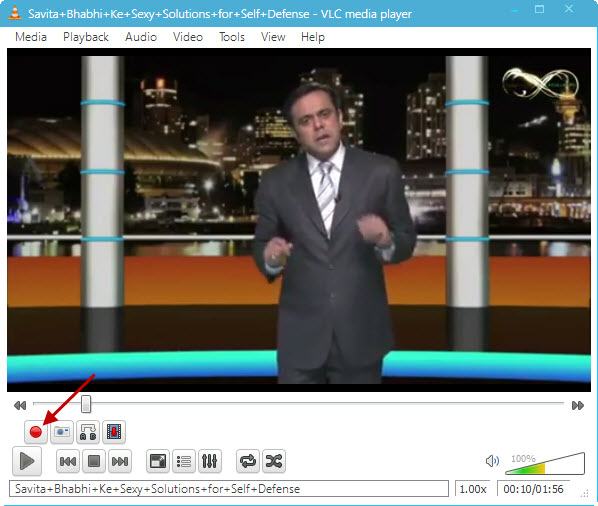
Alternatively, we can do it by just using Record Option to capture live streaming of video.

Enable Advanced Control from View menu and you will see RECORD button (Red circle)

Video Screenshots

You may want to capture some video still and export into JPG / PNG Image file then VLC has Snapshot feature. Right on Video Playback screen and click on Snapshot.

Image file will be saved to the directory you have mentioned in Preferences of VLC.
Were you aware that these all functions could be done using simple Media player? Imagine how many software could be trashed off from your computer which were meant to perform those small operations mentioned above.