Sunday, 6 May 2012

Basic Windows 8 Tricks You Must Know and Try

I guess many of you maybe on Windows 8 now after following easy way to dual boot windows 8 and 7. If you are somewhat geeky and want to tweak some features and play with it, here is a compilation of various basic tricks applied to Windows 8.

Restore the old Win 7 Start menu instead of the Start Screen

  • Go to the Windows Classic Desktop
  • Press Win + R to open Run
  • Type regedit and press Enter to access the registry editor sisitema;
  • Go to HKEY_CURRENT_USER\Software\Windows\CurrentVersion\Explorer;
  • Double-click on RPEnabled and set its value to 0 (the default is 1).

If you think the above steps are dirty then you can download Start Menu Toggle Application for Windows 8 which does the same easy way!

Try the touch capabilities of Windows 8 with the mouse

I already said while listing out Windows 8 Features that this OS is touch friendly but what if you don’t have touch input device. Try the inbuilt simulator.
  • Go to “C: \ Program Files (x86) \ Common Files \ Microsoft Shared \ Windows Simulator \”;
  • Microsoft.Windows.Simulator.exe start the program that simulates the Windows Start Screen 8 complete touch functionality (eg gestures for rotation and zoom) for use with the mouse.

Keyboard Shortcuts

  • WIN + Q research applications
  • WIN + W search settings
  • WIN + F Search files
  • WIN + The panel settings
  • WIN + O blocks the screen rotation
  • WIN + C displays the new mini-start menu with the time
  • WIN + Shift + C shows the new sidebar with shortcuts
  • WIN + Z displays a context menu in a full screen app
  • WIN + Y makes all windows transparent to the desktop below

How to Close / Exit Metro Applications

Like Traditional applications, Metro apps does’t have red cross icon to exit. Let me tell you when you return to the Windows desktop Homescreen and stays there for about a minute, they are stopped automatically by Windows. It can be seen by checking Task Manager, “Suspended” appears infront of their name.

How to change Windows 8 Home Screen Color [ 64 Bit ]


  1. Download this archive with detailed instructions on the HEX values ??to change;
  2. Download the hex editor HxD ;
  3. Navigate to the folder C: \ Windows \ System32 \ Windows Explorer with the 8;
  4. Click the File button at the top right and select Open Command Prompt> Open Command Promt as Administrator from the menu to open the command prompt;
  5. Give commands takeown / f and icacls uxtheme.dll uxtheme.dll / grant Administrators: F to acquire all the rights of uxtheme.dll;
  6. Copy the file uxtheme.dll on deskop;
  7. Open uxtheme.dll HxD;
  8. Press Ctrl + G and go to the locations specified in the HEX Hex file in the archive Table.txt downloaded at the beginning;
  9. Make sure the hex editor is set to OVERWRITE (OVERWRITE) and NOT Insert (Enter).
  10. Replace colors as shown in the Hex file in the archive Table.txt downloaded at the beginning. You can use the colors you want. Just use the format of Red, Green, Blue, Alpha (RGBA). For an image solid / opaque must leave the last byte of FF (eg: FF0000FF for a solid red);
  11. Save the edited file;
  12. Rename the uxtheme.dll file in the directory System32 uxtheme.dll.old;
  13. Copy the modified uxtheme.dll from the desktop to System32.
  14. Restart the PC.

Some more Handy Tricks

  • Switch quickly from your desktop Start Screen you can using the key combination WIN + Tab or by placing the mouse cursor to the far left of the screen and clicking on the small preview of the desktop that appears next to the dart.
  • Resize or delete a step in the Start Screen you can right click on it and using the options that appear at the bottom.
  • Search programs, files and settings can be rapidly going in the Start Screen key (WIN) and start typing the name of things to look for.
  • Change the color of the Start Screen to dark you can make by going into Control Panel and enabling mode “High Contrast” in “Ease of Access.”

How to Dual Boot Windows 8 and 7 clean installation without DVD easily

If you think Installing Windows 8 overwriting current installation wouldn’t be a good idea then Dual Booting it with Current Windows 7 is a perfect alternative. Even Windows 8 in Virtual Environment won’t give that good experience so, follow this guide to easily install dual boot Windows 8 without need of DVD.

Windows 8 Dual Boot Installation Requirements

You need Windows 8 ISO Image and Virtual CD / DVD Drive installed on Computer. This can be done with software like Virtual CD, Daemon Tools, Magic ISO or anything similar which supports mounting ISO CD Images.

Create Hard Disk Partition for Windows 8 Installation

First of all, make a separate Hard Disk Partition for Windows 8 installation.
Go to Disk Managenemt. Right Click on My Computer and click on Manage >> Disk Management.
Find any Hard Disk Partition with more than 25GB space free. Right click on it and Shrink. Enter the amount to shrink in MB = 20480 (20 GB is minimum requirement of Windows 8)

Shrink Existing HDD Partition
Click on newly created unallocated space of size 20GB and create new Simple Volume.
New Simple Volume Wizard will open. Keep the File system as NTFS and Give name as “Windows 8″ which will make recognizing easier at later stage. Don’t forget to check on Quick Format.

Create New Partition for Windows 8
Now, Partition has been created and we are ready to install Windows 8 on it.

Install Windows 8

Mount Windows 8 ISO Image – In my case, I have use Magic ISO which supports Mounting ISO from Tray icon. As soon as Mounting is successful, Autorun will start but close it.

Mount Windows 8 ISO
Open the DVD and navigate to /Sources folder where you will find Setup.exe
Run Setup.Exe
Run the Setup and Select to make “Custom Installation” instead of Upgrading current installation. This installs a fresh copy of Windows 8.
When asked “Where to Install Windows 8” Select the Partition which you created in above steps and Press Next.

Select Windows 8 Installation Partition
Installation begins with copying of files and then Computer will automatically restart. On Reboot, Loader will give two options- Windows Setup and Windows 7. Select “Windows Setup” and Press Enter to continue with Setup.
Installer is straight forward with clean GUI and more similar to Windows 7. That’s it!
First boot will take time which will include configuring Devices and Drivers (Network, Sound, etc)
Enter Windows Live ID to enter and you are ready to experience the awesomeness of Windows 8. You can read more about Windows 8 Experience.

Windows8 download link and 8 Things You Should Look Out For After Installing Windows 8

Windows 8 has been creating Buzz since its announcement and after the Release of Windows 8 Consumer Preview things have become more clear about how Windows 8 will look, what features it would provide, what new things users will get. I would be writing about the 8 things and features on Windows 8 that you should look for.

1. Metro Interface

Windows 8 Metro UI
Metro Interface is the biggest and most noticeable change that any user would figure out in Windows 8 replacing the default desktop screen that came in the earlier versions of windows resembling the Windows Phone Metro UI. As you will Land on Home screen of Windows 8 you would get around with new Metro UI filled with Tiles allowing you one click access to Games, Internet explorer, music, videos, photos, etc. Again for Touch users, swapping would work and those who are on the desktop would have to use scrolling options.

2. Traditional Desktop

windows 8 traditional desktop
Traditional desktop has been kept in Windows 8 which was by far the most popular screen for Windows users. It can be accessed by clicking on the Desktop tile on Metro interface.  No Start Menu, Touch UI,  feel of Metro interface are all ready to kill the Traditional desktop and turn into just another app for Windows 8.
There is a trick by which you can Restore the old Windows 7 Start menu instead of the Start Screen covered in Basic Windows 8 Tricks.

3. Windows 8 Charms Bar

Windows 8 Charms Bar
Charms bar is just like a Windows 8 toolbar which a user can access from any app he is working on. Windows 8 charms Bar is a new addition which can be accessed by hovering or moving the cursor on top or bottom right corner of the screen or by using a shortcut Windows + C. Accessing windows Charm bar would be very helpful to do basic operations like options of  search, share, start, devices and settings which are displayed as a vertical bar on right side and also pops a small bar on left displaying date and time.

4. Windows 8 App Store

Windows 8 App Store
Windows has officially launched App store for Windows 8 covering touch-friendly, Metro-style applications built for the new OS, including apps for productivity, photos, entertainment, social networking and games. Windows 8 has its future in the Tablet market as well and hence the App store integration for desktop is really a Plus Point. Metro apps can be directly downloaded from the App store where each program will have its own updater solving the third party installations issues.

5. User Session on Multiple Devices


Windows 8 allows the user to synchronize your data, settings, bookmarks, History, etc. across Tablets and Windows 8 computers if you choose to sign in with your Microsoft (Windows Live account) and not the Local one. Once you choose this, your data can be synchronized and you will be able to access it across multiple devices. In this way, you can sync your settings and get the same PC feel on your other devices too.

6. SkyDrive

Windows 8 Skydrive


SkyDrive Windows8
Skydrive is basically a Windows cloud storage service allowing users to Store, organize, and download your files, photos, and favorites on Windows Live servers and access them from any computer with an Internet connection. Windows 8 has got integration with  Skydrive which will allow users to fetch documents from any PCs connected to SkyDrive. Further with the Skydrive app, you can simply upload your data and you will be able to see it stored in cloud storage.

7. People

Windows 8 People App

The People app is part of a collection of Windows Live apps that also includes Mail, Calendar, Photos, Music and Videos. As such, these apps will not, in fact, be included as “part” of Windows 8 but will instead be offered separately, much as Windows Live Essentials is today. Just like you have Contacts in your Phone, This app will arrange all your contacts alphabetically where you can Pin your favorites and also search by just pressing the First few Initials.

8. Internet Explorer 10

Windows 8 comes with IE 10 in which browser has got 2 versions to work upon – Desktop and Metro Style giving different user experiences on both the interfaces with the Desktop interface being more preferred to Metro which is lacking basic things like printing, sharing web pages, flash player, etc. The main features that are incorporated are as follows  -
  1. Share charm support for URLs, snippets, images and selection with Mail and other apps.
  2. Double-tap to zoom in on content.
  3. Plug-in free support : notifications for sites requiring activeX.
Let us know if you feel there is something else interesting that you may have discovered and discuss more.


Download ::Windows8 User Preview
>>32 BIT
>>62BIT


Wednesday, 14 March 2012

Unify Multiple Email Accounts and Social Media Updates in One Window

Inbox2 is a freeware application for Windows which includes several Email servers with an attachment for social networking websites like Facebook, Twitter etc. It is more than just an email client. It includes all of your contacts into one place and gives you one inbox for all the messages from your friends from different streams.
Only one thing you might be missing in this software is a chat box as it covers Facebook and other Email accounts. Well, that would be just another excuse for not trying it out.

Setting up Inbox2

Inbox2 syncs up all your messaging data, documents & images (that you have received via emails) from your accounts that you have added to it. At first, it will take several minutes to configure fully and setup its services for you.
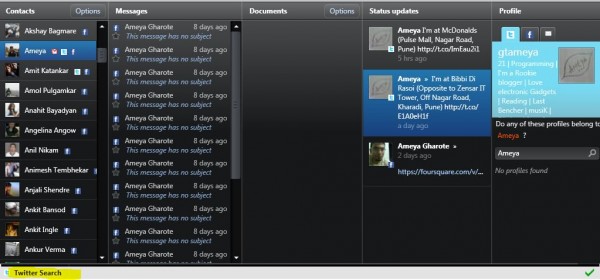
It is very easy & quick to add accounts by clicking on the icon of desired service. While adding Facebook, don’t use F-connect option instead just login with your account details. Moreover, it displays a live stream of recent activities from Facebook & Twitter. While in minimized state, it shows the background notifications too & you can set the time delay for it. Also at the bottom there is a Twitter search option but it doesn’t show the Trending Topics.

Prioritize

In the contacts window, it shows all the available information about the selected person. You can add other profiles of that person too. Well these are such basic options but the three main options are 1. Make To Do, 2. Waiting for answer & 3. Read Someday. You get these options while replying an email. You can put your replies in these three lists as per their priorities.
It is a very well crafted utility for your social communication over emails. Even though it is a beta version, it delivers a good performance. The interface is standard & beautifully managed but worked slower in Netbooks.
Tip- If you get resolution problems & unable to maximize then hold Start Menu & press Up arrow key to fit to the screen.

Tuesday, 6 March 2012

Free Google Books Search Download with Google Book Downloader and More

Google Books store is one of the most promising ebook store where you can have information about almost all the books published worldwide. It allows you to read books on the go & manage your library categorically. Now you can download the books available in Google Books shelf for free in PDF, JPEG or PNG format with GbooksDownloader. It is compatible with Windows & Mac.

Google Books


Google Books can be read online with no need to download but when you are offline, downloading the book, the one which you are reading currently, is the best option. Most of the books are available for free so its a nice catch. These books, even though they can be read online, are not in PDF format which can be downloaded directly from any browser. Also not every book is available for reading online but you can have its full information from this store. All I want to say is that the books which can be read here, can also be downloaded fully by this downloader. There is nothing like demo or skipped pages in the downloaded PDF.

How to download Books from GbooksDownloader

  • Search a book that you want to read.
  • Open its information and you will be seeing the book loading.
  • Check the book & the number of its pages.
  • Once you are convinced about the book just copy the link from the address bar & paste into GbooksDownloader.
  • Now select the basic options like Resolution & your desired format & define the download path & hit Start.
  • Your work is done here. Let the downloader finish its act now.

GbooksDownloader:

windows :  download link

I personally have downloaded the above mentioned book Mein Kampf & its about 30.2MB in size, so I am pretty much sure about the book has been downloaded fully. This downloader is bug free and quick in its action & very easy in its process.
Moreover, if you don’t get your desired book available in Google Books store, you can search for it by using Google Hacks download. Review our previous post about Google Hacks. It is also an official & advanced searching tool for education purpose. And it gives results with flying colors. I assure you all about the search results given by Google Hacks.

Converting Ebooks into your desired formats

Now let’s talk about the books which are not available in Google Books store. You can get search results from Google Hacks and then download from there. Almost all the books available on the web are in PDF format, so all you have to do is to download its PDF and save it. If you are using PDF reader then there is no need of converting it.
If you want to convert the book in Epub, Mobi etc format use Calibre Ebook converter download. It converts PDF into almost all the available formats for your mobile devices like Kindle or iPad. Just add the book & select Convert individually, then select your desired format. Your book will be converted now. The time taken for converting, depends on the size of the book.
Reading books is an amazing experience that we get from the stories or valuable information inside the books. Plus, getting all your books at your hand anytime is like a need & these are the two ways to deal with it. Have fun reading books in these ways!

Thursday, 2 February 2012

3 Software To Convert 2D Video to 3D and Watch Without 3D Monitor

In this age of technology we have the best gadgets and features to experience the media world with newer & more efficient ways. 3D videos are one of them surely. Now converting your 2D media into 3D is quite amazing thing to be experienced. All your childhood memories recorded and fortunately we have Software To Convert 2D Video to 3D.
Here we have listed top Software To Convert 2D Video to 3D. We tried our best to find a freeware software but no luck. Either way the Demo versions are enough to give you the 3D experience.
I was so sure about playing 3D videos on my Laptop’s normal TFT screen as I have been already introduced to a News paper which is in 3D. I was amazed and thought this sure can happen on any screen, you just need proper 3D glasses. As per my experience, I would say, I don’t need to buy a 3D Television just to watch 3D movies now. If you don’t have 3D glasses, you can make one at home. Learn the tutorial from here and watch 3D videos without 3D monitor.

Software To Convert 2D Video to 3D

These Demo versions are fully functional till they are expired & also have watermarks but that is not going to be a distraction while you are watching your converted 3D videos at home. You can convert your videos in your desired formats also, like AVI, MP4, WMV etc. To have a proper 3D video, you must understand the 3D depth effect which gives RED & BLUE shadow effects to create a 3D illusion. The more effect you give in, better is the 3D effect quality. It depends on the size & resolution of your screen. Well, this little knowledge about converting videos into 3D would be good enough. Let’s go through the list of the software.

1. 4Media 2D to 3D Video Converter

4Media 2D to 3D Converter lets you convert videos in almost every possible format and variable resolutions. As you can see the highlighted portion “3D Depth” is the main setting. Before converting, you can preview the final output. More settings to get low, medium & high qualities for both video & audio is also present.

2. Movavi 3D Video Converter

Movavi 3D Converter comes with 30 days of trial period. In this converter, you can change the 3D visuals settings above the 3D Depth effect. It is almost same as other converters with extra 3D settings.

3. Axara 3D Video Converter

Axara 3D Video Converter gives better quality of 3D effects to your videos. This converter converts videos in MP4 format. In the 3D effects settings, you will get two options as RED + BLUE  &  RED + CYAN. Select RED + BLUE as per the color of your 3D glasses.
All the converted videos are playable in your default media players. No need of using a 3D video player. You may give try to any of these Software To Convert 2D Video to 3D and Enjoy your videos in 3D now

Tuesday, 31 January 2012

How To:Change The Windows XP/7 Login Screen

Windows XP and 7 will have the Default Login Screen. Which Will Be So Boring to view the Default login Screen.You Can Add   Your Picture or Your Friends Picture In the Login Screen Of  Windows 7 and XP.In Online many Software tool are available for the  Process.But You Can do it Manually.. It will be More Knowledge Learning Process If done it by Manually.. You Can Be Proud at your Friends By Doing this manually  .


Easy Steps For the Windows Login Picture Changing Will Be Follows:
The Default Login Image Will Be

And You Can Change It Into the  Your Desired Login Background Image..


Method One
The Procedure Steps Will Follows In TobbyNews,
Step 1: Open The “Run” From Windows Start Menu.Or Press Winkey+R to Open Run..
Step2: Type In The Run “regedit” To Edit the Windows Registry For The Changing of the Windows Login Screen Change..

Step3: The Windows Registry Editor Will Open In that window On the Left Section Select The “”HKEY_LOCAL_MACHINE”"                                                                         Under that there Will Be an “SOFTWARE” Click On it And Expand It.  And Select the Following       Path=”Microsoft/Windows/CurrentVersion/Authentication/LogonUI/Background/
And the Full Path Is “”HKEY_LOCAL_MACHINE/SOFTWARE/Microsoft/Windows/CurrentVersion/Authentication/LogonUI/Background/
Step 4: You Will See An File Called OEMBackground On the Left Side Of the Registry Window,if It not there The  Step 4.1 Will Explain That How To Create OEMBackground .Click On The OEMBackground Change The Value Data 0 to 1.

Step 4.1: “Right Click” On the Left Panel Of the Registry Editor New->DWORD  Name Created Registry With OEMBackground. And Continnue The Step 4.


Step5: Open The Following Location On The Windows Explorer..    C:\Windows\System32\oobe  . Create A New Folder “backgrounds” in the “Info” Folder. Open the Folder “backgrounds”.


Step 6: Put Your Desired Picture  in the “backgrounds” folder  And Rename the file With backgroundDefault.jpg..  And Just Logoff Your Computer To View Your Picture As Windows Login Screen Background…..

Method Two
This Is Very Easy Method To Change Windows Login Screen
By This You Can Skip First 4 Steps Which Have Been Explained in Method One.
–>Just Download The Registry File And Run It..Click Here To Download The Registry File.
–>And Follow the Step 5 and Step 6.