Wednesday, 14 March 2012

Unify Multiple Email Accounts and Social Media Updates in One Window

Inbox2 is a freeware application for Windows which includes several Email servers with an attachment for social networking websites like Facebook, Twitter etc. It is more than just an email client. It includes all of your contacts into one place and gives you one inbox for all the messages from your friends from different streams.
Only one thing you might be missing in this software is a chat box as it covers Facebook and other Email accounts. Well, that would be just another excuse for not trying it out.

Setting up Inbox2

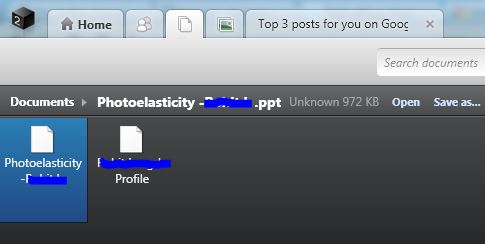
Inbox2 syncs up all your messaging data, documents & images (that you have received via emails) from your accounts that you have added to it. At first, it will take several minutes to configure fully and setup its services for you.
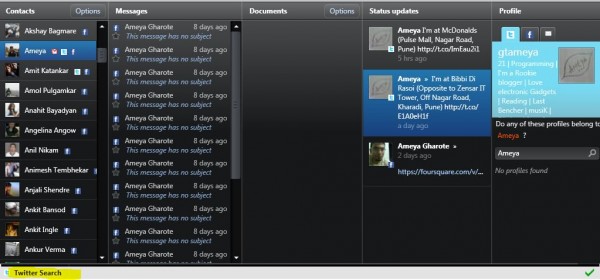
It is very easy & quick to add accounts by clicking on the icon of desired service. While adding Facebook, don’t use F-connect option instead just login with your account details. Moreover, it displays a live stream of recent activities from Facebook & Twitter. While in minimized state, it shows the background notifications too & you can set the time delay for it. Also at the bottom there is a Twitter search option but it doesn’t show the Trending Topics.
Prioritize

In the contacts window, it shows all the available information about the selected person. You can add other profiles of that person too. Well these are such basic options but the three main options are 1. Make To Do, 2. Waiting for answer & 3. Read Someday. You get these options while replying an email. You can put your replies in these three lists as per their priorities.
It is a very well crafted utility for your social communication over emails. Even though it is a beta version, it delivers a good performance. The interface is standard & beautifully managed but worked slower in Netbooks.
Tip- If you get resolution problems & unable to maximize then hold Start Menu & press Up arrow key to fit to the screen.

Tuesday, 6 March 2012

Free Google Books Search Download with Google Book Downloader and More

Google Books store is one of the most promising ebook store where you can have information about almost all the books published worldwide. It allows you to read books on the go & manage your library categorically. Now you can download the books available in Google Books shelf for free in PDF, JPEG or PNG format with GbooksDownloader. It is compatible with Windows & Mac.

Google Books


Google Books can be read online with no need to download but when you are offline, downloading the book, the one which you are reading currently, is the best option. Most of the books are available for free so its a nice catch. These books, even though they can be read online, are not in PDF format which can be downloaded directly from any browser. Also not every book is available for reading online but you can have its full information from this store. All I want to say is that the books which can be read here, can also be downloaded fully by this downloader. There is nothing like demo or skipped pages in the downloaded PDF.

How to download Books from GbooksDownloader

  • Search a book that you want to read.
  • Open its information and you will be seeing the book loading.
  • Check the book & the number of its pages.
  • Once you are convinced about the book just copy the link from the address bar & paste into GbooksDownloader.
  • Now select the basic options like Resolution & your desired format & define the download path & hit Start.
  • Your work is done here. Let the downloader finish its act now.

GbooksDownloader:

windows :  download link

I personally have downloaded the above mentioned book Mein Kampf & its about 30.2MB in size, so I am pretty much sure about the book has been downloaded fully. This downloader is bug free and quick in its action & very easy in its process.
Moreover, if you don’t get your desired book available in Google Books store, you can search for it by using Google Hacks download. Review our previous post about Google Hacks. It is also an official & advanced searching tool for education purpose. And it gives results with flying colors. I assure you all about the search results given by Google Hacks.

Converting Ebooks into your desired formats

Now let’s talk about the books which are not available in Google Books store. You can get search results from Google Hacks and then download from there. Almost all the books available on the web are in PDF format, so all you have to do is to download its PDF and save it. If you are using PDF reader then there is no need of converting it.
If you want to convert the book in Epub, Mobi etc format use Calibre Ebook converter download. It converts PDF into almost all the available formats for your mobile devices like Kindle or iPad. Just add the book & select Convert individually, then select your desired format. Your book will be converted now. The time taken for converting, depends on the size of the book.
Reading books is an amazing experience that we get from the stories or valuable information inside the books. Plus, getting all your books at your hand anytime is like a need & these are the two ways to deal with it. Have fun reading books in these ways!